- http://feeds.feedburner.com/yankeehacker - the main feed: all the posts
- http://feeds.feedburner.com/yankeehackercomments - the comment feed
- http://feeds.feedburner.com/yankeehackerpages - a feed of all the static pages
Showing posts with label blog. Show all posts
Showing posts with label blog. Show all posts
Tuesday, February 16, 2010
New blog
Loyal readers: I have a new blog: The Yankee Hacker! You can find it at http://yankeehacker.blogspot.com/. Please go check it out. Even better: follow it with Google Friend Connect and subscribe to the feed. I plan to post about a wide variety of things on that blog, but it will probably have a strong geek/nerd bend to it.


Thursday, July 30, 2009
Embed multiple Google calendars, the sequel
I put together some instructions of how to embed multiple Google calendars on Google Sites sites. I included screenshots and thought it looked pretty nice, plus I got some positive feedback for it. Unfortunately, Google seems to have changed something about how Sites interprets its calendar widget and made the hack I figure out not work anymore.
My attention was drawn to this by a comment today from a reader who had followed my instructions and received an error. Both his site and mine were complaining about chaining multiple site URLs like Google does in its own embedded calendar customizer. I noted the problem and said I would look into it later. Tonight was later.
This Google question indicated that somebody else was having a similar problem, but did not provide a solution. This chain of posts from the Google Calendar help group presented a solution similar to my original post and discussed a GUI solution from Google that I could not find in Chrome or IE 8.
Then I found this Google Sites help question that provides a work around. I am not entirely happy with it, but it is better than the error I was getting and gets the job done. You can find the instructions here. The trick is to insert a widget that lets you insert the calendar inside of it.
My attention was drawn to this by a comment today from a reader who had followed my instructions and received an error. Both his site and mine were complaining about chaining multiple site URLs like Google does in its own embedded calendar customizer. I noted the problem and said I would look into it later. Tonight was later.
This Google question indicated that somebody else was having a similar problem, but did not provide a solution. This chain of posts from the Google Calendar help group presented a solution similar to my original post and discussed a GUI solution from Google that I could not find in Chrome or IE 8.
Then I found this Google Sites help question that provides a work around. I am not entirely happy with it, but it is better than the error I was getting and gets the job done. You can find the instructions here. The trick is to insert a widget that lets you insert the calendar inside of it.
Tuesday, June 23, 2009
Return of the favicon
In my most recent blog redesign I finally got my favicon working correctly. What is a favicon? It is the little icon that identifies the site in the browser. Internet Explorer and Firefox show them in the tabs and in the search bar, while Chrome just shows them in the tabs, and Safari just shows them in the search bar. Who cares about what Opera does? Mine is a small version of my WeeWorld avatar.
I initially found a partial solution a couple of blog redesigns ago. However, it only seemed to work some of the time on some browsers. After fiddling with a number of different tutorials and icon converters, I found this Fix for "missing" favicon post. The previous tutorials I had followed had me put the code in the wrong place. The correct location is immediately before the close of the header as opposed to the beginning.
I initially found a partial solution a couple of blog redesigns ago. However, it only seemed to work some of the time on some browsers. After fiddling with a number of different tutorials and icon converters, I found this Fix for "missing" favicon post. The previous tutorials I had followed had me put the code in the wrong place. The correct location is immediately before the close of the header as opposed to the beginning.
Tuesday, June 16, 2009
Six online sites for personal branding
I felt pretty bad that my initial post on personal branding was an epic fail. However, after watching how mainstream media also had an epic fail, I do not feel so bad. This post is also on personal branding, but I am not going to attempt to explain it again. This time I am just listing six important places a modern professional should establish his or her brand online:
- A website - Here is my website. It is not very mature (although I have various old ones scattered across the web), but it is my current site. A website does not need to have all sorts of bells and whistles, but it should be some place that your online presence may call home. There are a number of free web hosting services. If you get serious, you should probably get a domain name too.
- A blog - You are reading my blog. A blog is more dynamic than a website. Like websites, there are a number of free blogging services, Blogger and Wordpress being the most popular. It is easier to generate content for a blog than for a site. A blog can showcase your writing, which is valuable in any line of work.
- Twitter - My Twitter handle is @ncooprider. Twitter has the ability to reach many people really quickly. The commitment level is less than with a blog or with Facebook, so your Twitter-network can include people you do not know and you can send out less-than-stellar tweets. Twitter can drive traffic to your site and blog, or just serve as a medium for crowd sourcing.
- A Google Profile - Here is my Google profile. It is yet to be seen if this thing will really take off, but I think it is a valuable tool. You can see from my profile that my web presence was a little crazy, and this allows me to consolidate and clarify. This is crucial if your online brand extends beyond one or two services (which it must do to have real reach).
- LinkedIn - Here is my LinkedIn profile. This is the professional social networking site. It may not pack the power of Facebook, but it makes that up in focus. Keeping a resume online here is easy and effective (last month I got a call from recruiters through this and I am not even looking for a job).
- Facebook - My Facebook username is ncooprider. I got my first job out of school through Facebook. It is the biggest kid on the block. Some people hate it and there are a lot of things which are annoying about it, but it still lives up to its name.
Saturday, June 13, 2009
Personal branding
The recent move by Facebook to allow the selection of usernames has prompted some to ask: why? The answer is personal branding.
Your online presence is part of your brand. I would argue that it is a very significant part. How much you care about or publicize that brand depends on a number of factors. One thing to note, however, is that a quality brand must be built up over time. In other words, it is easier to gradually build up and maintain your online presence than to find yourself needing one and thinking "hmmm, maybe I'll try the internet now."
Why would you need one? Well, I found my current job (it found me) through my online presence (facebook). You can make money with a strong enough brand through blogging or online content. Your online brand can help grow your online social network beyond your physical social network.
Getting a username is like having a professional logo for a business. A business could just write their name in Helvetica and be done with it. The same information gets conveyed, and people can find them. However, a nice logo grabs people's attention, and a nice sign will make it easier to find while driving past it.
Think about it in terms of trademark. Why do companies fight so hard to keep their trademark? In our information age the ability to reach down to individuals has multiplied exponentially. Do you want somebody infringing on your personal trademark? What about if that infringement affects your future job search? Your spouses future job search? Your children's future job search?
Here are some additional places to look on wikipedia: Related to this topic is the idea of finding a market for quality content. I wrote a blog post about it. Only the paradigm shift is that you are the content!
Your online presence is part of your brand. I would argue that it is a very significant part. How much you care about or publicize that brand depends on a number of factors. One thing to note, however, is that a quality brand must be built up over time. In other words, it is easier to gradually build up and maintain your online presence than to find yourself needing one and thinking "hmmm, maybe I'll try the internet now."
Why would you need one? Well, I found my current job (it found me) through my online presence (facebook). You can make money with a strong enough brand through blogging or online content. Your online brand can help grow your online social network beyond your physical social network.
Getting a username is like having a professional logo for a business. A business could just write their name in Helvetica and be done with it. The same information gets conveyed, and people can find them. However, a nice logo grabs people's attention, and a nice sign will make it easier to find while driving past it.
Think about it in terms of trademark. Why do companies fight so hard to keep their trademark? In our information age the ability to reach down to individuals has multiplied exponentially. Do you want somebody infringing on your personal trademark? What about if that infringement affects your future job search? Your spouses future job search? Your children's future job search?
Here are some additional places to look on wikipedia: Related to this topic is the idea of finding a market for quality content. I wrote a blog post about it. Only the paradigm shift is that you are the content!
Friday, June 12, 2009
Google Analytics
I wouldn't call myself a "fan" of Jason Calacanis, but I must admit he has a ton more experience and credentials than I do. One of the things I've heard him endorse a number of times is Google Analytics.
I do not know much about the service except that it is a service by Google for analyzing web traffic. It is ridiculously easy to set up on Google Sites. Just remember that it might take a day or so for it to register in the Analytics dashboard. It is also really easy to set up the service for Blogger blogs.
Analytics seems to measure real traffic, while Google's Webmaster Toolkit keeps track of how Google views your site. I do not really know more about how to leverage them, yet.
I do not know much about the service except that it is a service by Google for analyzing web traffic. It is ridiculously easy to set up on Google Sites. Just remember that it might take a day or so for it to register in the Analytics dashboard. It is also really easy to set up the service for Blogger blogs.
Analytics seems to measure real traffic, while Google's Webmaster Toolkit keeps track of how Google views your site. I do not really know more about how to leverage them, yet.
Saturday, June 06, 2009
Blogger feeds
I'm a big fan of feed aggregators, my two favorite right now being Friendfeed and Google Reader. I think everybody should use these tools and also connect with me through them. I have believed for a while now that just about everything interesting on the web has a feed form. It was not until my shower this morning that I realized an important implication.
I've know you can subscribe to a blogger blogs feed for a while. This blog's main feed is http://ncooprider.blogspot.com/feeds/posts/default. Subscribing to a different blog is simply a matter of replacing the ncooprider with the correct blog name. I should note that feeds are turned on in Blogger by default but may be turned off in the Settings tab (if you have done this, go turn them back on. Now).
My favorite blog to read normally has pretty good comments, but it is also sporadic in when the comments get posted. It is a pain to go back and hunt through the past four posts to find new comments. I suggested adding a comment widget, but that is only a partial solution. The real solution, I found this morning, is to subscribe to the comments feed! The comments feed for my blog is http://ncooprider.blogspot.com/feeds/comments/default. As with the main blogger feed, just change the ncooprider in order to subscribe to another blogger blog's comments.
Now I have subscribed to the sites comments, so whenever anybody says anything on that blog, I can read it!
I've know you can subscribe to a blogger blogs feed for a while. This blog's main feed is http://ncooprider.blogspot.com/feeds/posts/default. Subscribing to a different blog is simply a matter of replacing the ncooprider with the correct blog name. I should note that feeds are turned on in Blogger by default but may be turned off in the Settings tab (if you have done this, go turn them back on. Now).
My favorite blog to read normally has pretty good comments, but it is also sporadic in when the comments get posted. It is a pain to go back and hunt through the past four posts to find new comments. I suggested adding a comment widget, but that is only a partial solution. The real solution, I found this morning, is to subscribe to the comments feed! The comments feed for my blog is http://ncooprider.blogspot.com/feeds/comments/default. As with the main blogger feed, just change the ncooprider in order to subscribe to another blogger blog's comments.
Now I have subscribed to the sites comments, so whenever anybody says anything on that blog, I can read it!
Wednesday, June 03, 2009
Sharing blogger entries on social media
I like social media that makes sharing itself easy. I also like social media that is not obviously trying to prostitute itself to the intertubes (yes, my previous blogger layout was an intertube whore). For example, I like to have a digg button on an article, but I do not want it to be large and draw attention to itself (especially when the count is only in the single digits). I like it the way I have done it on my blog:  You may be asking how this is done. I will show and tell you how to add buttons for sharing your Blogger blog posts on Facebook, Twitter, Digg, and del.icio.us.
 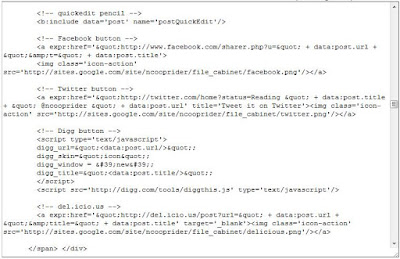 There are obviously a number of things you want to change. You'll want to insert your Twitter handle instead of mine. You may want to change the thumbnails to be independent of my site. However, it should pretty much work as advertised.
The hardest one for me to get working was for facebook, and this site got me most of the way there. I had to change and update a few things, and I still think there is probably a better way.
 You may be asking how this is done. I will show and tell you how to add buttons for sharing your Blogger blog posts on Facebook, Twitter, Digg, and del.icio.us.
 - Open the Settings tab for your blog in blogger
- In the Basic sub-tab make sure Show Email Post links? is put to Yes
- Open the Layout tab
- Select Edit HTML
- Click the box for Expand Widget Templates
- Search for quickedit pencil in the code.
- Below that comment and the line after it are where you will add the buttons
 There are obviously a number of things you want to change. You'll want to insert your Twitter handle instead of mine. You may want to change the thumbnails to be independent of my site. However, it should pretty much work as advertised.
 The hardest one for me to get working was for facebook, and this site got me most of the way there. I had to change and update a few things, and I still think there is probably a better way.
Monday, June 01, 2009
Blog tweaks
I gave my blogs a few tweaks this evening. Responding to an almost universal dislike of the size of my friendfeed widget, I reduced it. I also reduced the width of the side column and two sub-columns. Then I added back the square ad in the top right. I think that is the only ad I will have on my new blog, at least until somebody tries to get me to sell out.
The other thing I added is a "post to del.icio.us" button to the bottom of posts. bloggerbuster had some good example code that showed how to do this. I seem to get a number of good tips from that site.
I also just found Steegle, who seems to know a bit more than I do about using Google Sites. I have not had time to explore the site much, but it seems like a good resource. Especially now that I think I am finally done with blog tweaks and ready to focus on my site.
The other thing I added is a "post to del.icio.us" button to the bottom of posts. bloggerbuster had some good example code that showed how to do this. I seem to get a number of good tips from that site.
I also just found Steegle, who seems to know a bit more than I do about using Google Sites. I have not had time to explore the site much, but it seems like a good resource. Especially now that I think I am finally done with blog tweaks and ready to focus on my site.
Sunday, May 31, 2009
Embed multiple Google calendars
UPDATE: 7/30/2009 AM - It appears that Google changed the API and that these instructions do not work as advertised. I will investigate this evening and hopefully post a working solution.
UPDATE: 7/30/2009 PM - I found a solution and wrote a blog post about it.
This morning I am home sick, so I decided to figure out how to embed multiple calendars into my new home page. Some of the instructions are Google Sites specific, but they should be adjustable to whatever platform you are actually using.
UPDATE: 7/30/2009 PM - I found a solution and wrote a blog post about it.
This morning I am home sick, so I decided to figure out how to embed multiple calendars into my new home page. Some of the instructions are Google Sites specific, but they should be adjustable to whatever platform you are actually using.
- Go to your Google Sites page where you want to add the calendar
- Click on Edit Page

- Select the Insert menu and then select Calendar

- For now you can only insert one calendar, so fill out the menu box for one of your calendars
- Editing the object through this menu box again will write over the changes we are about to make
- I suggest turning off the calendar title, border, and name

- Editing the object through this menu box again will write over the changes we are about to make
- Click on Save in the menu box (A calendar widget should show up now)
- Click on the button for editing HTML (for some reason this takes a while to load)

- Open a new tab/window and go to your Google calendars
- Click on Settings
- Click on Calendars
- Click on one of the calendars
- Under the Embed This Calendar section, click on Customize the color, size, and other options
- Under Calendars to Display, check all the calendars you want to display on the page

- In the text box under Copy and paste the HTML below to include this calendar on your webpage you have to select and copy some text:
- Resize the box (click and drag lower right corner) so you can see all the text
- Ignore the text up to the second src=
- Select the text from that point up to immediately before &ctz=
- Copy (ctrl-c)

- Resize the box (click and drag lower right corner) so you can see all the text
- Go back to the tab/window for editing the html of the Google Sites page
- Find the origsrc attribute and select its value

- Paste the contents from the Google Calendar text box to replace the attribute value (ctrl-v)
- Click on Update


Saturday, May 30, 2009
Blog facelift
After some time apart, my blog and I have reconciled our differences and come back together. I doubt this means that I will actually post often or regularly, but it does mean that I spent some time today giving it a face-lift. If you read my posts through an aggregator please actually come by and visit to check out the new layout!
I started out trying to follow this guide for making a three-column blog. Either the guide is out of date or I messed something up because it did not work correctly. It was not really what I wanted either. I like having the option for wider elements up above the two side columns. I found this guide which does exactly that.
I then went through and scrapped all my widgets and elements. That includes the ads. I opened up an old post of mine and followed my own instructions for re-adding things I actually thought added value to the blog. I have not yet added the ads back in. Someday that will happen, but today is not that day.
I then added a couple of things I have been wanting to do. This blog entry talks about adding the digg button below each post (I changed the type to an icon). I also found this blog entry about adding a button for tweeting the blog. So now you can email, digg, or tweet my blog posts!
So this is my new blog layout. Comments are welcome!
I started out trying to follow this guide for making a three-column blog. Either the guide is out of date or I messed something up because it did not work correctly. It was not really what I wanted either. I like having the option for wider elements up above the two side columns. I found this guide which does exactly that.
I then went through and scrapped all my widgets and elements. That includes the ads. I opened up an old post of mine and followed my own instructions for re-adding things I actually thought added value to the blog. I have not yet added the ads back in. Someday that will happen, but today is not that day.
I then added a couple of things I have been wanting to do. This blog entry talks about adding the digg button below each post (I changed the type to an icon). I also found this blog entry about adding a button for tweeting the blog. So now you can email, digg, or tweet my blog posts!
So this is my new blog layout. Comments are welcome!
Wednesday, March 04, 2009
There's always a market for quality content
One of the first TWITs I listened to also happened to be the best one I have heard yet. TWIT 133 consisted of a panel discussion with and about Jonathan Coulton. I had never heard of him before, but the discussion about niche markets was fascinating and informative.
He quit his job as a software engineer to be a singer/songwriter instead, and now he makes more money doing that than he did as a software engineer. The "crazy" part about this is that he offers a lot of his content for free from his web page. He allows people to use most of it in derivative, non-commercial work (license). This is counter-intuitive to most people. What is also counter-intuitive is that people buy banana, robot, and monkey gifs on his site as a way of donating money. The point is that if you create quality content, somebody will pay for it. The trick is finding your niche. Coulton's niche is the tech nerd (Code Monkey is one of his more famous songs). I am having a hard time explaining. Check out his site and listen to TWIT 133.
Also, I think I saw him in Atlanta when I was flying back to Utah from my job interview at BAE a year ago. The airport was pretty messed up due to some ice (I was delayed for a number of hours) otherwise I think I would have got an autograph or something. It would have been a little awkward, since at the time my only exposure to him was TWIT 133. Don'y worry, I now have the whole year of Thing a Week.
Let me be clear: this is not a get rich quick scheme. At first I thought this was a new dot-com bubble. Maybe it was, to some extent. However, the bubble burst in October. Producing quality content that someone will pay for takes a lot of hard work, talent, and time. I do not have the time to put in the work, so my blog remains cluttered and not updated. However, many people I know have the time or have talents that are more easily shared over the internet (e.g. writing).
Speaking of writers, TWIT 184 talks about the death of print media. It is just not cost effective, especially with devices like the Kindle 2 coming out. One journalist I know had his local branch shut down this past year, and another newspaper employee I know was laid-off this week. If you have relied on printed media to publish your work in the past, I would highly recommend listening to TWIT 133 and TWIT 184. Then start self publishing on the web as much as you can. Create your own brand. It is worth something to the right people, and the right people are out there.
He quit his job as a software engineer to be a singer/songwriter instead, and now he makes more money doing that than he did as a software engineer. The "crazy" part about this is that he offers a lot of his content for free from his web page. He allows people to use most of it in derivative, non-commercial work (license). This is counter-intuitive to most people. What is also counter-intuitive is that people buy banana, robot, and monkey gifs on his site as a way of donating money. The point is that if you create quality content, somebody will pay for it. The trick is finding your niche. Coulton's niche is the tech nerd (Code Monkey is one of his more famous songs). I am having a hard time explaining. Check out his site and listen to TWIT 133.
Also, I think I saw him in Atlanta when I was flying back to Utah from my job interview at BAE a year ago. The airport was pretty messed up due to some ice (I was delayed for a number of hours) otherwise I think I would have got an autograph or something. It would have been a little awkward, since at the time my only exposure to him was TWIT 133. Don'y worry, I now have the whole year of Thing a Week.
Let me be clear: this is not a get rich quick scheme. At first I thought this was a new dot-com bubble. Maybe it was, to some extent. However, the bubble burst in October. Producing quality content that someone will pay for takes a lot of hard work, talent, and time. I do not have the time to put in the work, so my blog remains cluttered and not updated. However, many people I know have the time or have talents that are more easily shared over the internet (e.g. writing).
Speaking of writers, TWIT 184 talks about the death of print media. It is just not cost effective, especially with devices like the Kindle 2 coming out. One journalist I know had his local branch shut down this past year, and another newspaper employee I know was laid-off this week. If you have relied on printed media to publish your work in the past, I would highly recommend listening to TWIT 133 and TWIT 184. Then start self publishing on the web as much as you can. Create your own brand. It is worth something to the right people, and the right people are out there.
Tuesday, November 18, 2008
Google Reader
Whether you know it or not, you probably read RSS (real simple syndication) feeds. You also probably share the items on these feeds with your friends. My favorite tool for both reading and sharing is Google Reader.
Here is a video overview of the service, including how to get started (the voice is kind of loud, so watch your volume):
Here are some other sites for getting started:
Google's tour of Reader
Another video intro to Reader
cnet's newbie guide to Reader
None of those guides is perfect, but they should all give you an idea. Here is my one paragraph guide for the super lazy and/or busy: Go to Google Reader and sign in using your Google account. If you are the last person in the world to have a Google account, now would be a good time to sign up. Now that you are in Reader, you want to add subscriptions. In separate tabs (if you are still using IE6, just give up and go home. Seriously) open up some of your favorite news sites and look for the RSS icon ( ) or something that says RSS. Click on it to open a nasty looking text page (the feed). Highlight the URL and then go back to the Reader tab. Click on add a subscription and then paste the copied URL. Click "add" and then hope for the best.
Eventually you will get the hang of things and realize that there are different ways to do things, but that should get you going. One cool part of Reader is sharing. You can check your sharing settings under "Sharing settings." When you are reading an article or summary in Reader, at the bottom is a link that says "Share" and has a gray version of the RSS logo to the left of it. When you click on it, the logo turns orange and you have shared that article. The article then shows up in your public feed ("Shared items") and it gets shared with your friends. Here's a link to my shared items. That's it!
Alright, maybe the other guides are better. Oh well. Here are a couple of links for even more information:
Wikipedia entry on Google Reader
The official Google Reader blog
Here is a video overview of the service, including how to get started (the voice is kind of loud, so watch your volume):
Here are some other sites for getting started:
None of those guides is perfect, but they should all give you an idea. Here is my one paragraph guide for the super lazy and/or busy: Go to Google Reader and sign in using your Google account. If you are the last person in the world to have a Google account, now would be a good time to sign up. Now that you are in Reader, you want to add subscriptions. In separate tabs (if you are still using IE6, just give up and go home. Seriously) open up some of your favorite news sites and look for the RSS icon (
) or something that says RSS. Click on it to open a nasty looking text page (the feed). Highlight the URL and then go back to the Reader tab. Click on add a subscription and then paste the copied URL. Click "add" and then hope for the best. Eventually you will get the hang of things and realize that there are different ways to do things, but that should get you going. One cool part of Reader is sharing. You can check your sharing settings under "Sharing settings." When you are reading an article or summary in Reader, at the bottom is a link that says "Share" and has a gray version of the RSS logo to the left of it. When you click on it, the logo turns orange and you have shared that article. The article then shows up in your public feed ("Shared items") and it gets shared with your friends. Here's a link to my shared items. That's it!
Alright, maybe the other guides are better. Oh well. Here are a couple of links for even more information:
Saturday, November 15, 2008
Popular posts
It turns out I have had two semi-successful blog posts. No, they did not make the front page of Digg. No, they did not make me semi-wealthy. One of them did get copied by another blog, and another comes up fairly high on Google.
My post on my Google phone interview drew a little attention. Most of this attention came from my lab mate at school, but apparently somebody else caught on.
This blog of Google interview experiences lifted my post right out of my blog, along with some information from my old personal web page. I'm somewhat annoyed that I was not asked and that my original blog post is not cited, but the post has back links inside of it and the coolness of being noticed outshines the annoying-ness of being ripped off. Please just ask and (especially) cite before stealing, I will more likely than not okay it. Back to the subject at hand: that post got noticed.
My post on my troubles with iTunes 7.5 pulled in a lot of comments, most of which expressing gratitude for fixing a common problem. It was very cool to help people all over the world avoid the same pitfalls I was having.
The logical question is: how do I write more posts like this? The answer is: I do not know. Two out of almost a hundred is not enough to see a trend. Obviously, I want to write about things appealing to large amounts of people. That is hard to think up, though!
My post on my Google phone interview drew a little attention. Most of this attention came from my lab mate at school, but apparently somebody else caught on.
This blog of Google interview experiences lifted my post right out of my blog, along with some information from my old personal web page. I'm somewhat annoyed that I was not asked and that my original blog post is not cited, but the post has back links inside of it and the coolness of being noticed outshines the annoying-ness of being ripped off. Please just ask and (especially) cite before stealing, I will more likely than not okay it. Back to the subject at hand: that post got noticed.
My post on my troubles with iTunes 7.5 pulled in a lot of comments, most of which expressing gratitude for fixing a common problem. It was very cool to help people all over the world avoid the same pitfalls I was having.
The logical question is: how do I write more posts like this? The answer is: I do not know. Two out of almost a hundred is not enough to see a trend. Obviously, I want to write about things appealing to large amounts of people. That is hard to think up, though!
Saturday, November 08, 2008
My blog changes
I have had this blog for a while, but this has been my first semi-serious attempt to make it interesting/cool/useful/attractive for anybody other than myself. I am happy to talk about any of the things I did or ideas I tried, and will share code if you are interested. Hopefully I can be a useful resource for setting up your own blog.
What I am a little hazy on is how to set up the actual blog on Blogger and the process for signing up for AdSense. I did both of those steps a long time ago. However, I remember them being very straightforward. Since Google makes money on their ads, they want you to be able to put them on your blog!
To see how I did the three-column layout, checkout my previous post.
There were several widgets I wanted to add into my site. Adding widgets is easy in blogger. You just go to the "Layout" tab and then click on "Add a Gadget." The easiest ones to add are the ones Google provides, but you can add almost anything through the "HTML/JavaScript" option. You just have to not be scared of a little code. I added these four widgets using "HTML/JavaScript": FriendFeed, Flickr, Goodreads, and Google Calendar. Each site has instructions for getting the code, and then you just add it to through the Blogger add gadget interface.
I wanted to add a favicon and found these instructions. They do not seem to work. I looked around a bit for some other instructions, but they did not work either. If you know how to do this, please share. If I take some time to figure it out, I'll blog it.
There were a few tricky things I wanted that Blogger did not provide and that weren't straightforward cuts and pastes into a single gadget. This site has 15 useful widgets and scripts for Blogger. The two I use are recent comments and label cloud. Both have good instructions and are not difficult. They are more involved than the gadget interface.
One problem with the way I initially set up my Blogger template is that on really short postings (such as this one) the two half-sidebars on the right would slide underneath the post instead of staying underneath the full sidebar. The correct way to fix this is CSS or div tags or something like that. My quick and dirty way to deal with it was to put everything into a two column table. However, this slowed everything down as the whole table would load at once. A little research told me how to fix it using a colgroup tag.
If you have any questions about how I set things up, please let me know and I will see if I can answer them. If you have any comments or suggestions, please send those along as well! Thanks!
What I am a little hazy on is how to set up the actual blog on Blogger and the process for signing up for AdSense. I did both of those steps a long time ago. However, I remember them being very straightforward. Since Google makes money on their ads, they want you to be able to put them on your blog!
To see how I did the three-column layout, checkout my previous post.
There were several widgets I wanted to add into my site. Adding widgets is easy in blogger. You just go to the "Layout" tab and then click on "Add a Gadget." The easiest ones to add are the ones Google provides, but you can add almost anything through the "HTML/JavaScript" option. You just have to not be scared of a little code. I added these four widgets using "HTML/JavaScript": FriendFeed, Flickr, Goodreads, and Google Calendar. Each site has instructions for getting the code, and then you just add it to through the Blogger add gadget interface.
I wanted to add a favicon and found these instructions. They do not seem to work. I looked around a bit for some other instructions, but they did not work either. If you know how to do this, please share. If I take some time to figure it out, I'll blog it.
There were a few tricky things I wanted that Blogger did not provide and that weren't straightforward cuts and pastes into a single gadget. This site has 15 useful widgets and scripts for Blogger. The two I use are recent comments and label cloud. Both have good instructions and are not difficult. They are more involved than the gadget interface.
One problem with the way I initially set up my Blogger template is that on really short postings (such as this one) the two half-sidebars on the right would slide underneath the post instead of staying underneath the full sidebar. The correct way to fix this is CSS or div tags or something like that. My quick and dirty way to deal with it was to put everything into a two column table. However, this slowed everything down as the whole table would load at once. A little research told me how to fix it using a colgroup tag.
If you have any questions about how I set things up, please let me know and I will see if I can answer them. If you have any comments or suggestions, please send those along as well! Thanks!
Wednesday, November 05, 2008
New layout
It may not look like much yet, but I am in the middle of a major facelift for my blog. As of right now, all I have done is switched back to black text on a white background and changed the layout. You can download my layout and use it if you want. I started with a three-column template from this site and tweaked it a bit (moved the left column to the right and added a square above).
The reason I am doing this is that my blog looked pretty shabby and I am now trying to improve it (with the goal of attracting more traffic). I decided the best way to do this was to look at how "real bloggers" did their sites, so I looked at some of my favorite "net celebrity" blogs for ideas.
Of course, I am open for ideas from my adoring fans. Next step is adjusting the advertisements, then on to the widgets. . . .
The reason I am doing this is that my blog looked pretty shabby and I am now trying to improve it (with the goal of attracting more traffic). I decided the best way to do this was to look at how "real bloggers" did their sites, so I looked at some of my favorite "net celebrity" blogs for ideas.
Of course, I am open for ideas from my adoring fans. Next step is adjusting the advertisements, then on to the widgets. . . .
Subscribe to:
Posts (Atom)


 Posts
Posts


